File Watcher for Shell Workflows
Custom File Watcher For Shell-Heavy Workflows
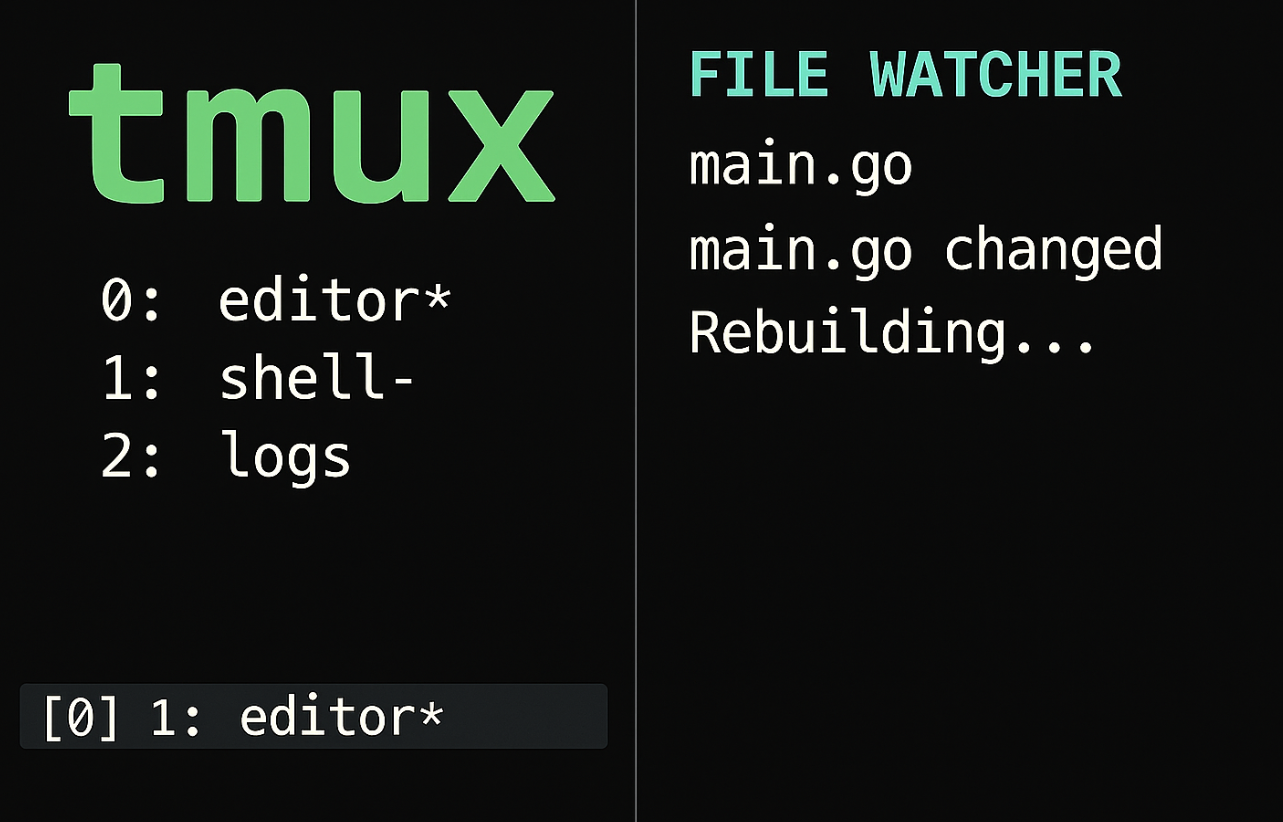
There are many file watchers available, but during debugging or remote development, we need to execute or send commands to a different machine or terminal pane.
Most programming languages build tools now include built-in file watchers for fast rebuilding and testing, still having dedicated file watcher utility is useful for:
- Running SQL queries on file changes
- Automating Go build and test workflows
- Remote SSH operations with limited access
Core part ot the utility is the inotifywait command, which waits for a specific event such as file save (close_write) on a file. On saving the file, the passed command (e.g., a Go test) is executed:
while inotifywait -r -qqe close_write algo_test.go; do
    go test -timeout 6h -vet=all -v -count=1 TestFuzzyMatch
done
You can watch multiple files and run any command when they are written to. If you want to send commands to another terminal pane (such as an SSH session), you can use tmux send-keys to run the command in the specified PANE_ID:
# ... parameter parsing ...

while inotifywait -r -qqe close_write ${WATCH_FILES[@]}; do
    tmux send-keys -t $PANE_ID -- C-c Enter clear Enter "$RUN_COMMAND" Enter
done
Typical usage: To watch a file and run tests on every write:
fs-watch algo_test.go -- go test -timeout 6h -vet=all -v -count=1 TestFuzzyMatchAdvanced: Sending File Contents to Another Pane
For more advanced debugging or complex workflows, you can create a temporary file, edit it, and have its contents sent and executed automatically in another pane. By passing the pane ID to fs-send, the contents of the temporary file will be sent to the target pane whenever the file is saved.
function fs-send() {
  export FILE_NAME=$(mktemp /tmp/fs-repl.XXXXXX)

  if ${IN_VSCODE}; then
    # If running in VS Code, open the file in the editor
    code "$FILE_NAME" 2> /dev/null
  elif ${IN_TMUX}; then
    # If in a tmux session, open the file in a split pane
    tmux split-pane -b -l 70% edit "$FILE_NAME"
  else
    echo "Invalid environment (no tmux, no VS Code)"
    return 1
  fi

  fs-watch --file "$FILE_NAME" \
    -- "cat $FILE_NAME | xargs -0 -L 1 -I '{}' tmux send-keys "$@" '{}' Enter"
}
To send the contents to a target shell pane, simply run:
# Replace 1 with your target pane ID
fs-send -t 1
Full Script: View on GitHub Gist
Happy Hacking !
Published on June 29, 2025 • 2 min read